
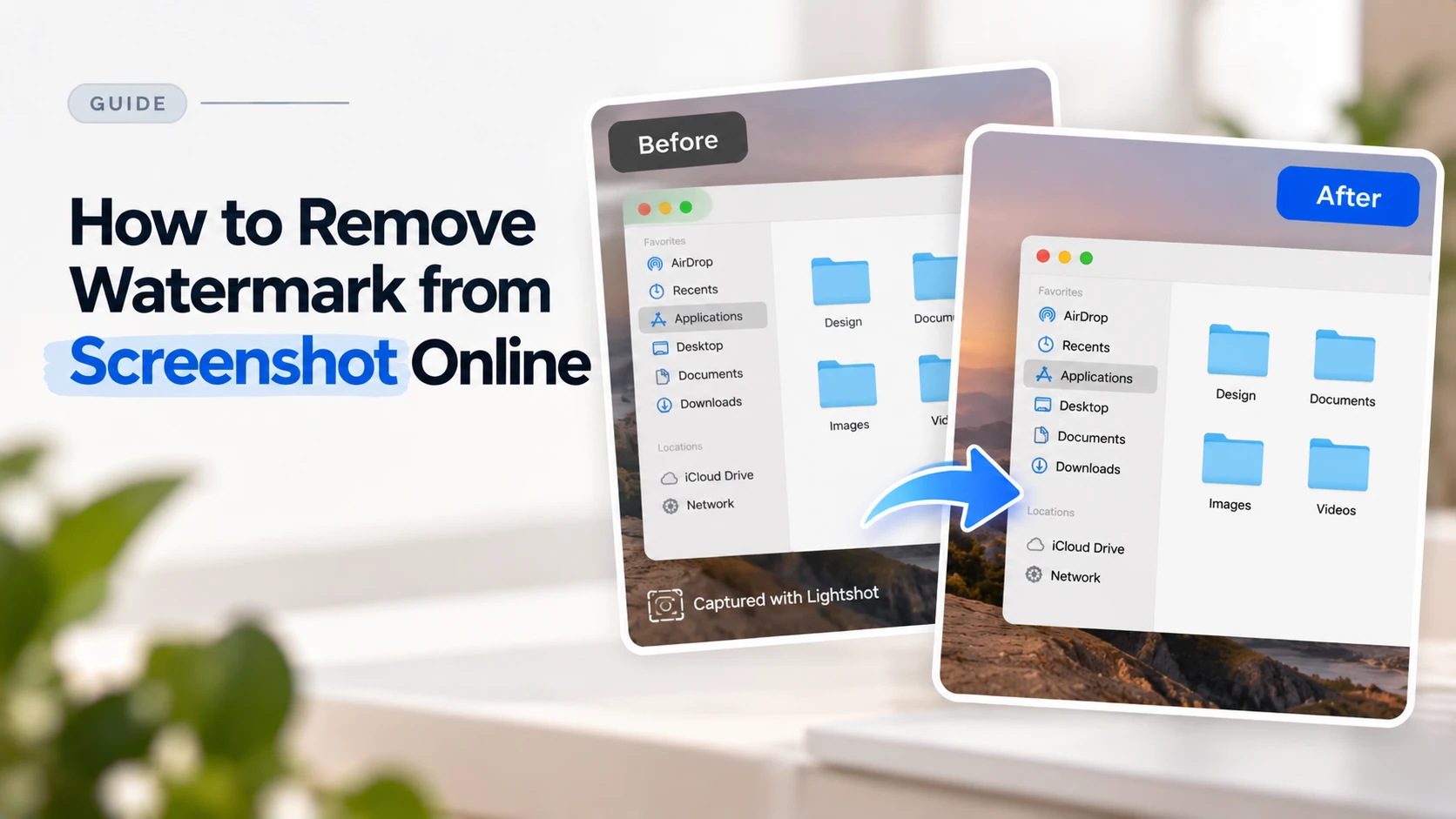
Screenshots are one of the most common ways to capture content — from app interfaces and web pages to software demos and digital receipts. But many screenshots end up with an unwanted watermark: a platform logo baked into a saved image, a tool’s branding added automatically on export, or a date and device stamp that the screenshot utility added without asking.
Removing a watermark from a screenshot has its own set of considerations that differ from removing watermarks from photos. This guide covers the types of watermarks that appear on screenshots, why they behave differently from photographic content, and the most effective process for cleaning them up online.
Where Screenshot Watermarks Come From
| Source | What Gets Added | Common Situations |
| Screenshot tool (free tier) | App name or logo in corner or bottom bar | Lightshot, Snagit free, mobile screenshot apps |
| Platform save function | Platform logo or username on downloaded images | Instagram, TikTok, Pinterest saved images |
| Operating system | Date/time stamp, device name | Some mobile OS screenshot features with auto-annotation enabled |
| Screen recording export | Recording app branding on extracted still frames | Loom, OBS, Camtasia free exports |
| Online tool export (free tier) | Tool name added to the output image | Image editors, annotation tools, mockup generators |
| Digital asset platforms | Preview watermark on undownloaded assets | Mockup sites, UI kits, template marketplaces |
Why Screenshots Are Different from Photos
Photographic images have continuous tone — gradients, textures, depth. Screenshot content is fundamentally different: it consists of flat UI elements, solid colors, sharp text, and interface components rendered at exact pixel boundaries.
This affects watermark removal in two ways:
- Backgrounds in screenshots are often solid or very simple — a flat color, a gradient, a repeated UI pattern. When a watermark sits on a solid-color background, AI reconstruction is extremely clean because the model only needs to fill the area with a matching flat color.
- Text in screenshots is rendered at screen resolution, which is typically lower than photographic resolution. After removing a watermark, any text near the removed area should be checked at 100% zoom — the sharp edges of screen-rendered text make quality differences more obvious than in photos.
The Most Common Screenshot Watermark: Corner Branding
The most frequent case is a screenshot tool’s logo or name placed in the bottom-right or bottom-left corner of the image. This is the standard watermark format used by free-tier screenshot utilities.
This placement is one of the easiest to remove cleanly:
- It’s localized to a small area of the image
- It typically sits on the edge of the screenshot, where the background is usually simple (a solid UI panel, a toolbar, an edge of a web page)
- The area is far from the main content of the screenshot, so even if reconstruction weren’t perfect, it wouldn’t affect readability of the captured content
For corner branding watermarks on screenshots, automatic AI detection and removal handles the task in one step without any manual input needed.
Step-by-Step: Removing a Watermark from a Screenshot
- Step 1 — Export or save the screenshot at the highest available resolution. If the screenshot tool offers a resolution setting, use the highest. For phone screenshots, use the original file rather than a compressed share.
- Step 2 — Identify what type of watermark you’re dealing with. Corner branding, bottom strip, diagonal overlay, or a date/text stamp each have slightly different characteristics. Knowing the type tells you whether automatic detection will handle it fully or whether you’ll need the manual brush for any residual marks.
- Step 3 — Upload to the watermark remover. Browser-based tools work directly with the screenshot file — no software installation needed.
- Step 4 — Run automatic detection. For corner logos and bottom bar branding, the AI identifies and removes the watermark automatically. For diagonal overlays or tool-branded watermarks with unusual shapes, automatic detection still handles most cases reliably.
- Step 5 — Check the output at 100% zoom, focusing on: (a) the area where the watermark was — it should be a clean continuation of the surrounding background; (b) any text or interface elements adjacent to the removed watermark — these should remain sharp and undisturbed.
- Step 6 — Use the manual brush if any residual marks remain. Paint precisely over the remaining area and reprocess. For screenshots, the clean flat backgrounds mean a second pass is almost always clean.
A watermark remover that handles corner logos, bottom bar branding, and diagonal overlays on screenshots — Phototune watermark remover processes images automatically with a manual brush available for any residual marks. No account required.
Handling Text Stamps and Date Overlays
Some screenshot tools add a text stamp rather than a graphical logo — a date, a time, a device name, or a capture source identifier. These are slightly different from logo watermarks:
- Text stamps are often very small and may use a font that blends with the interface content in the screenshot — white text on a light background, or small grey text on a UI panel
- Automatic detection identifies most text stamp patterns, but very low-contrast stamps may need a manual brush selection to define the area clearly
- Because the stamp is text rather than a graphical element, the surrounding background is usually flat — reconstruction is clean once the removal area is defined correctly
Platform Branding on Saved Screenshots
Social media platforms add a handle or logo when images are saved from the app. Instagram adds the poster’s handle, TikTok adds a handle-plus-logo strip, Pinterest adds a corner logo. These are technically screenshots, but they behave like standard watermark placements:
- Instagram handle stamps: small, corner-placed, on whatever the background of the bottom-left corner happens to be
- TikTok bottom strip: a consistent width strip with the username and platform logo side by side — defined area, easy for automatic detection
- Pinterest corner logo: small, always in the same position, straightforward removal
For all of these, automatic AI detection handles the removal without manual input in the majority of cases.
Output Format for Screenshots
| Use Case | Recommended Format | Notes |
| Documentation, internal use | PNG | Lossless — preserves the sharp edges of UI text and interface elements |
| Web publishing, blog posts | PNG or WebP | PNG for maximum sharpness; WebP for smaller file size with near-lossless quality |
| Presentations (PowerPoint, Google Slides) | PNG | JPEG compression adds visible artifacts around text edges in slides |
| Social media upload | PNG or JPEG at 90%+ | Platforms re-compress on upload; start with the highest quality source |
| Print materials | PNG at high resolution | Screenshots are screen-resolution by default — upscale before printing if needed |